Using the Inspector to format objects
In Layout mode, you can use the Inspector to view and modify the settings for objects. The Inspector can be opened as a pane within the document window or as a separate window.
Inspector pane
The Inspector pane is on the right within the document window. The organization and behavior of the Inspector pane can differ by operating system:
-
Windows and macOS: The standard Inspector displays four tabs with icons—Position
 , Styles
  , Appearance
  , and Data
  . Each tab shows all settings but dims the ones that don't apply to the selected object.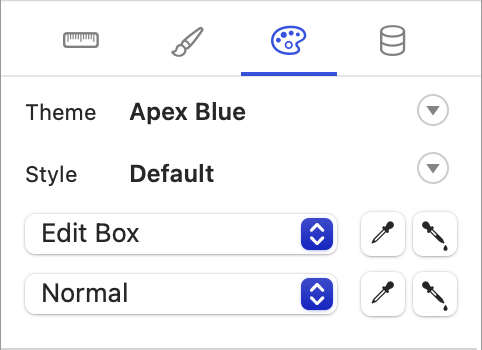
-
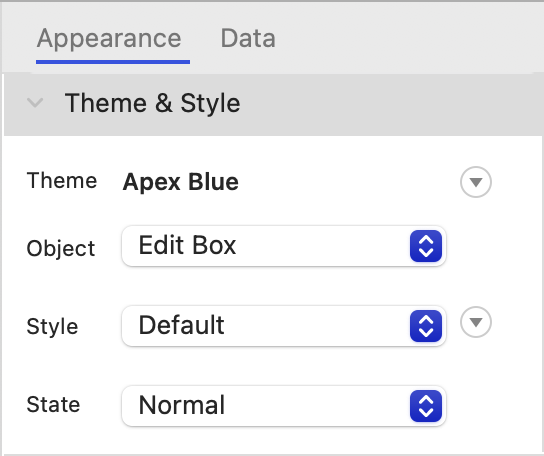
macOS: The adaptive Inspector displays two tabs—Appearance and Data. Each tab shows only the settings relevant to the selected object and hides the rest. The Appearance tab contains theme, style, position, size, and visual formatting options. The Data tab contains field, behavior, and data formatting options.
By default, the pane uses the standard Inspector. To switch to the adaptive Inspector pane, select the Use adaptive Inspector pane option. See Changing schema settings.
To show or hide the Inspector pane:
-
In Layout mode, click Inspector
 in the status toolbar.
Inspector window
Windows and macOS: The standard Inspector displays four tabs with icons—Position , Styles , Appearance , and Data . Each tab shows all settings but dims the ones that don't apply to the selected object.
To show the Inspector window:
-
In Layout mode, choose View > Inspectors > New Inspector.
Tip You can show multiple Inspector windows at the same time and show a different tab in each.
Notes
-
Most instructions in FileMaker Pro Help that refer to the Position or Styles tabs apply to the standard Inspector. When using the adaptive Inspector pane in macOS, look for Position and Styles settings in the Appearance tab.