Move a project
Project owners can move projects to and from teams that they're associated with. When a project owner moves a project from the source team to the destination team, all flows, app connections, settings, and email notifications are preserved.
Important This action does not preserve the project in the source team. In text editing terms, this is a cut-and-paste action, not a copy-and-paste.
To move a project:
-
In your source team, click
 on the project you want to move, then select Move Project.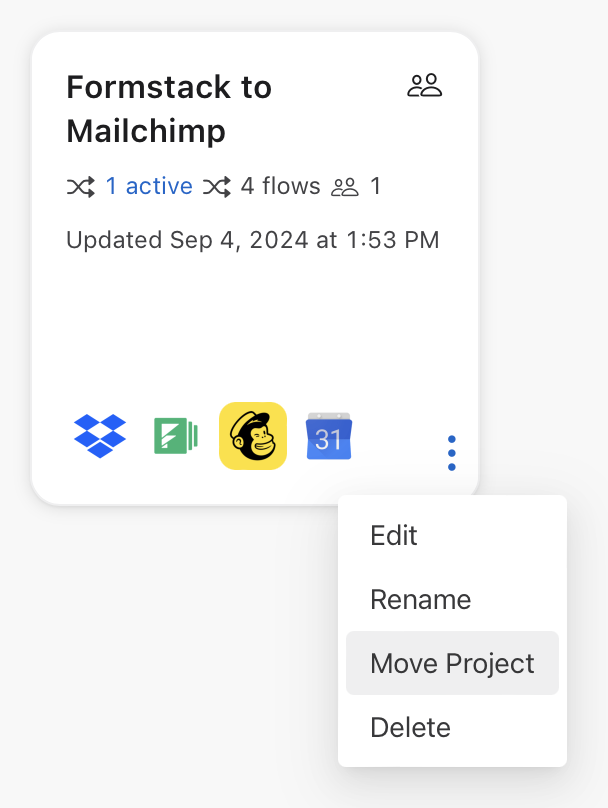
-
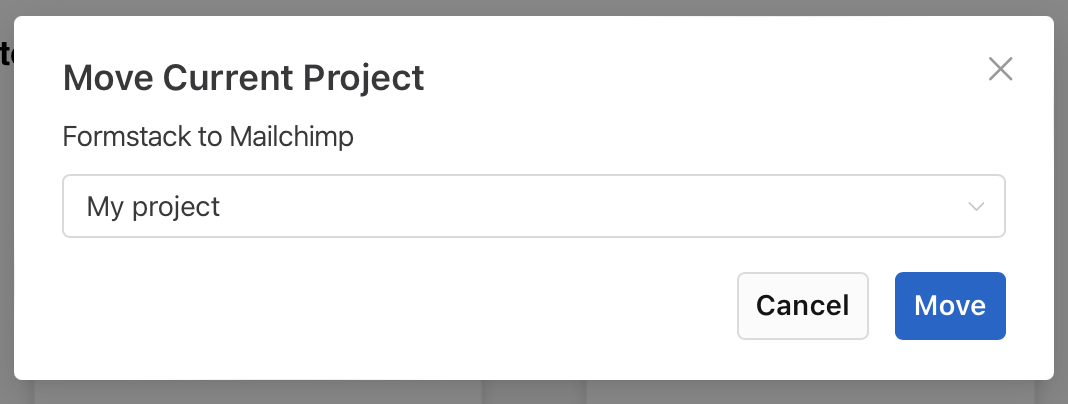
In the window that appears, choose the destination team from the drop-down menu, then select Move. A notification at the top of the page will indicate that the move was successful.
Notes
-
Only project owners can move projects freely between any teams they are associated with. If you need access to a project in a different team, ask the project owner to create a template of that project and share it with the desired team. See Creating custom templates.
-
All flows within the moved project will be moved along with the project.
-
All flow settings will be preserved when the project is moved. This includes flow state (enabled/disabled), pending approvals, error handling settings, connector authentication details, configured step fields, and step data references.
-
All custom connectors used in a project will be moved to the new team when then project is moved.
-
On-premise agents and custom connectors associated with the source team will not be moved to the destination team to prevent disruptions to other projects in the source team.